

People no longer look for a restaurant, a shop or a service provider only on Google. They also ask ChatGPT things like "Can you recommend a good car inspection centre in Eskişehir?" On 10 November 2026 OpenAI launched Businesses in ChatGPT in beta, giving business owners a way to manage how they appear in those answers. The tool is called Business Hub in OpenAI's English documentation, and in the ChatGPT sidebar it simply shows up as Business.
This guide walks through how to add your business to ChatGPT and claim its profile, using screenshots from our own run-through. We have been helping brands get found online from our base in Eskişehir since 2012, and we tested the flow on two real local listings: Experix Kurumsal Oto Ekspertiz Merkezi and Eskişehir Odunpazarı Evleri. The screenshots are from the Turkish interface, so button labels in English may be worded slightly differently.
"ChatGPT Business" can mean two different things
Two separate products get mixed up in search results:
- Business (Business Hub): the free section where you claim your business profile in ChatGPT, edit its details and see how often it gets mentioned. This is what you want if the question is "how do I add my business to ChatGPT?"
- The ChatGPT Business plan: the paid subscription that lets a team use ChatGPT in a shared workspace. According to OpenAI's help centre, this plan used to be called ChatGPT Team and was renamed on 29 August 2025, with no other changes.
Most of this article covers the first one. We look at the subscription briefly at the end.
What is OpenAI Business Hub?
Business Hub is the panel where a business owner manages what ChatGPT knows about their business. According to OpenAI's help article "Setting up your business on ChatGPT", you can claim your profile, update your details once you are verified, connect a product feed if you are eligible, and see mentions and website clicks over the last 28 days. Eligible businesses can also set up a Business Agent that answers customer questions.
OpenAI says claiming a profile, using Business Hub and viewing insights is free, and that you don't need an ads account or an Enterprise agreement. In short, business profiles are the clearest sign yet that ChatGPT is turning from a chat tool into a discovery channel.
How to add your business to ChatGPT, step by step
The interface is still in beta, so labels may change. These steps reflect what we saw in November 2026.
1. Open the Business section in ChatGPT
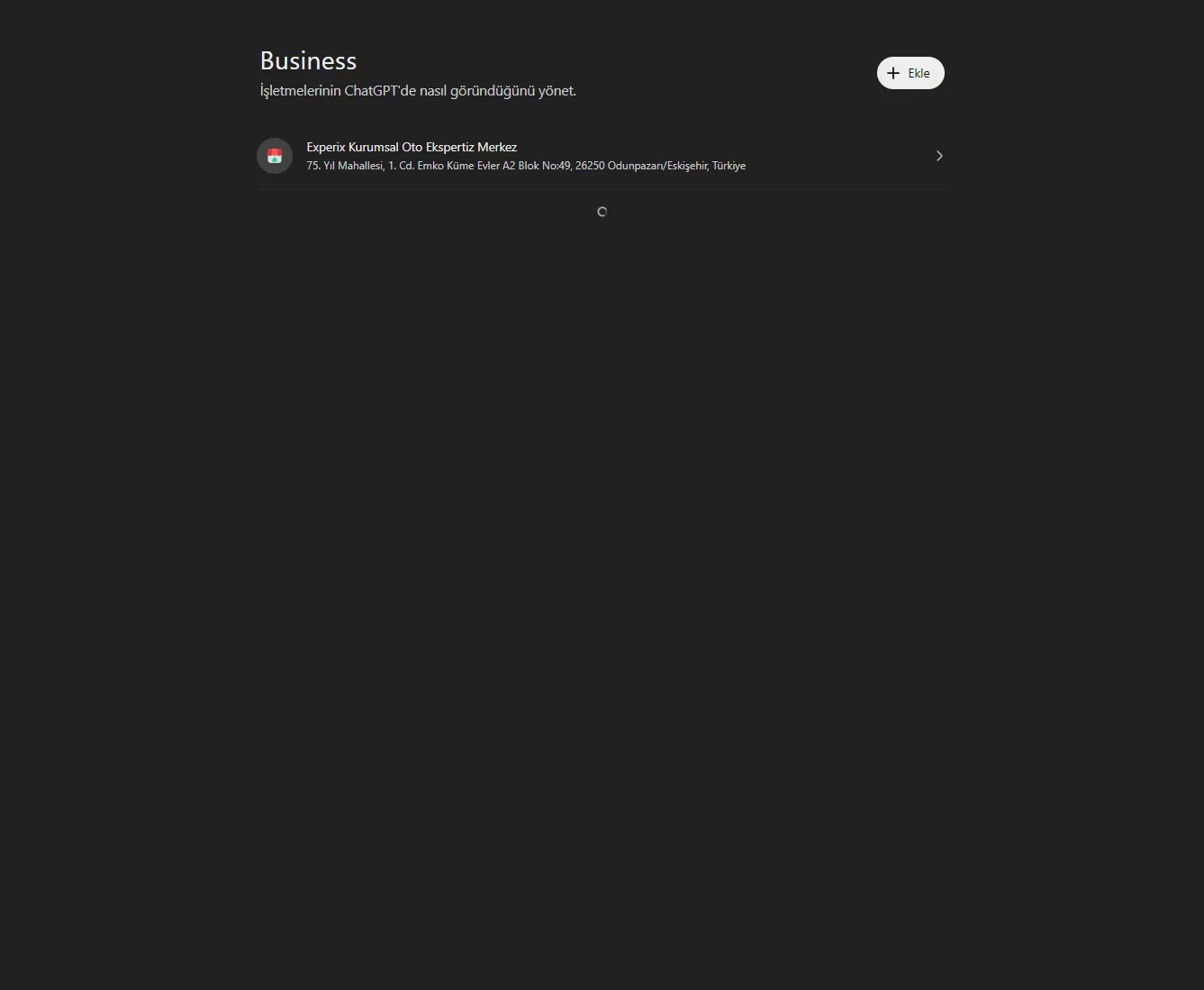
Sign in with the ChatGPT account that will manage the business and open Business from the left sidebar (direct link: chatgpt.com/business-hub). The page is headed "Manage how your businesses appear in ChatGPT" and lists any businesses you have already claimed. To add a new one, click Add in the top right.
We recommend using an account tied to a company email rather than someone's personal address, so you don't lose access when a team member leaves.
2. Search for your business by name
On the "Reach new customers and grow your business with ChatGPT" screen, type your business name into the search box and pick your listing.
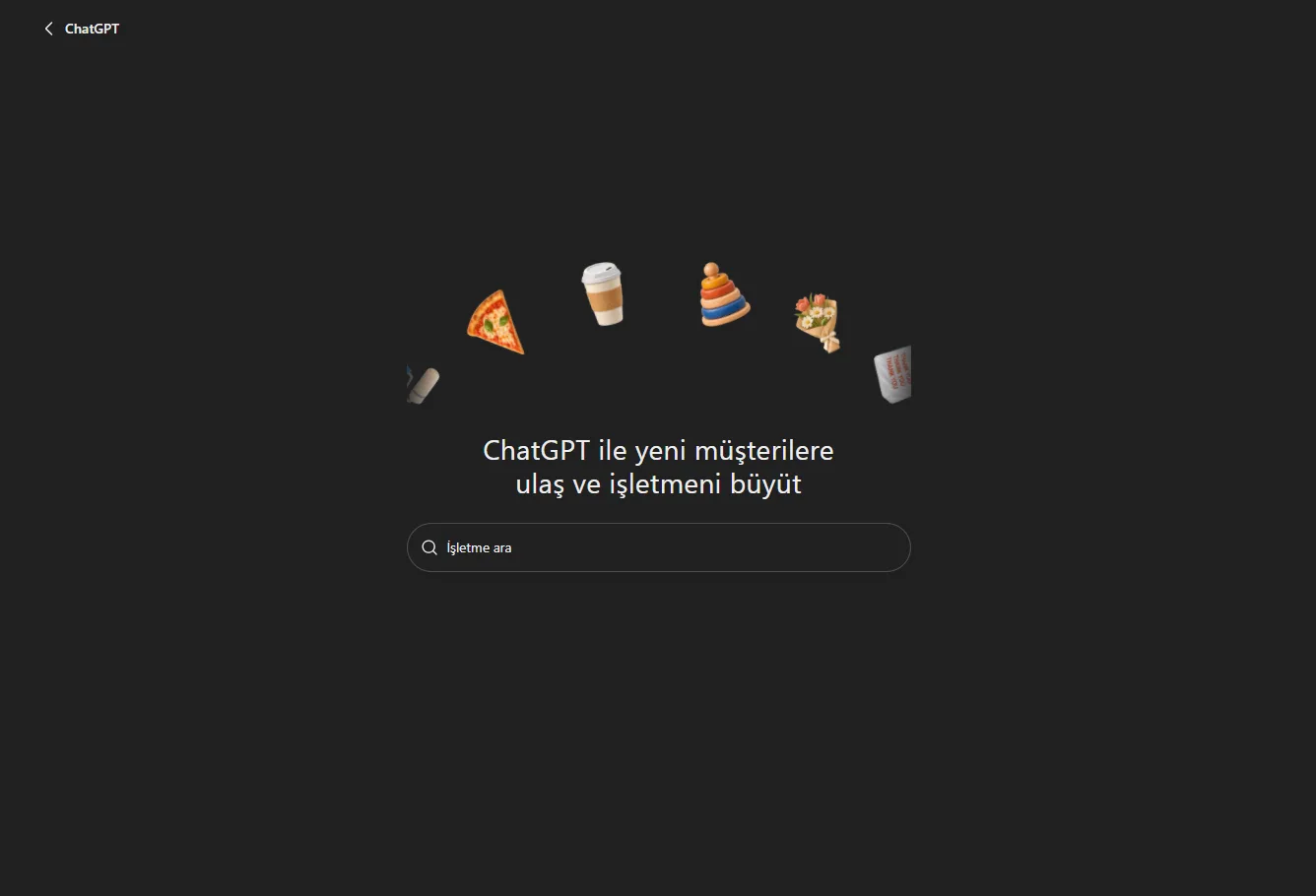
If your business doesn't show up, what happens next depends on the type of business. OpenAI's help article says eligible online businesses may see an option to add a new listing, while local businesses need to claim a listing that already exists.
3. Click Get started on the claim screen
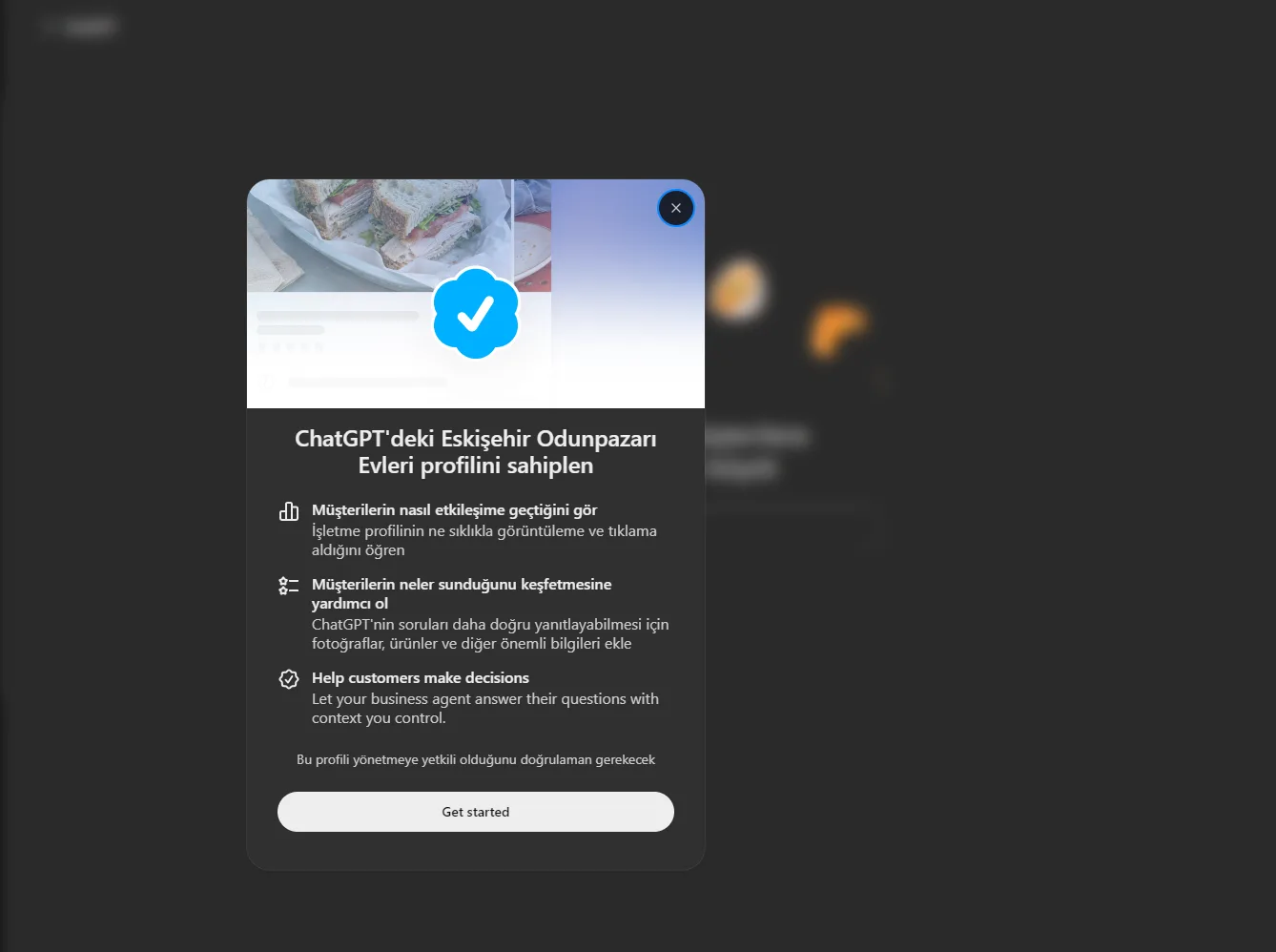
When you select a listing, ChatGPT sums up what claiming gives you: seeing how often customers view and click your profile, adding photos, products and other key details, and letting a business agent answer customer questions. A note at the bottom says you will need to verify that you are authorised to manage the profile. Click Get started.
4. Confirm your account and accept the terms
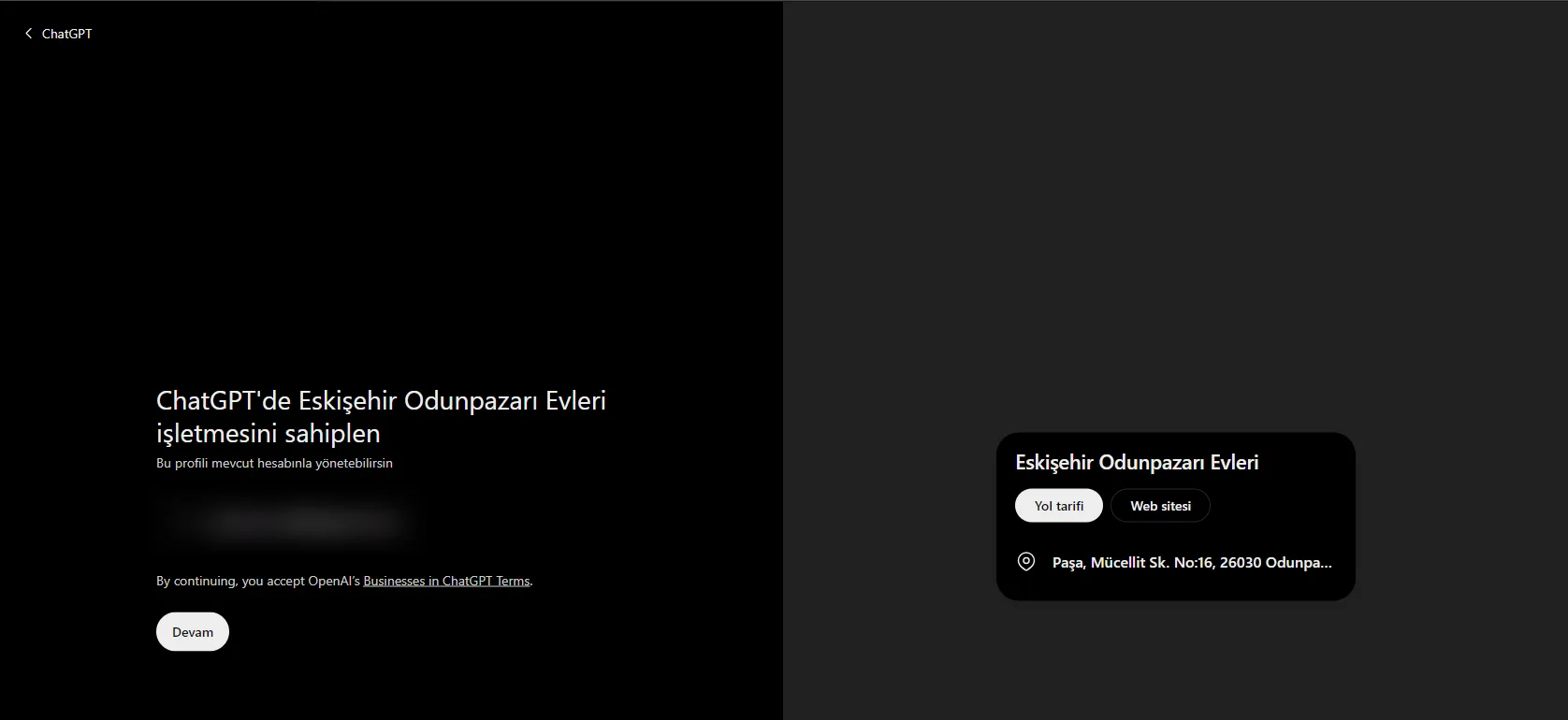
The next screen shows which ChatGPT account will manage the profile. Clicking Continue means you accept OpenAI's "Businesses in ChatGPT Terms". On the right you get a preview of your listing as it appears in ChatGPT, with the name, Directions and Website buttons and the address.
5. Choose a verification method
We were offered two options:
- Business phone: you receive a code by SMS or phone call.
- Website domain: you prove you control the domain through DNS or your website.
OpenAI's help article also lists business email and Shopify as verification methods. Which options you see depends on the business.
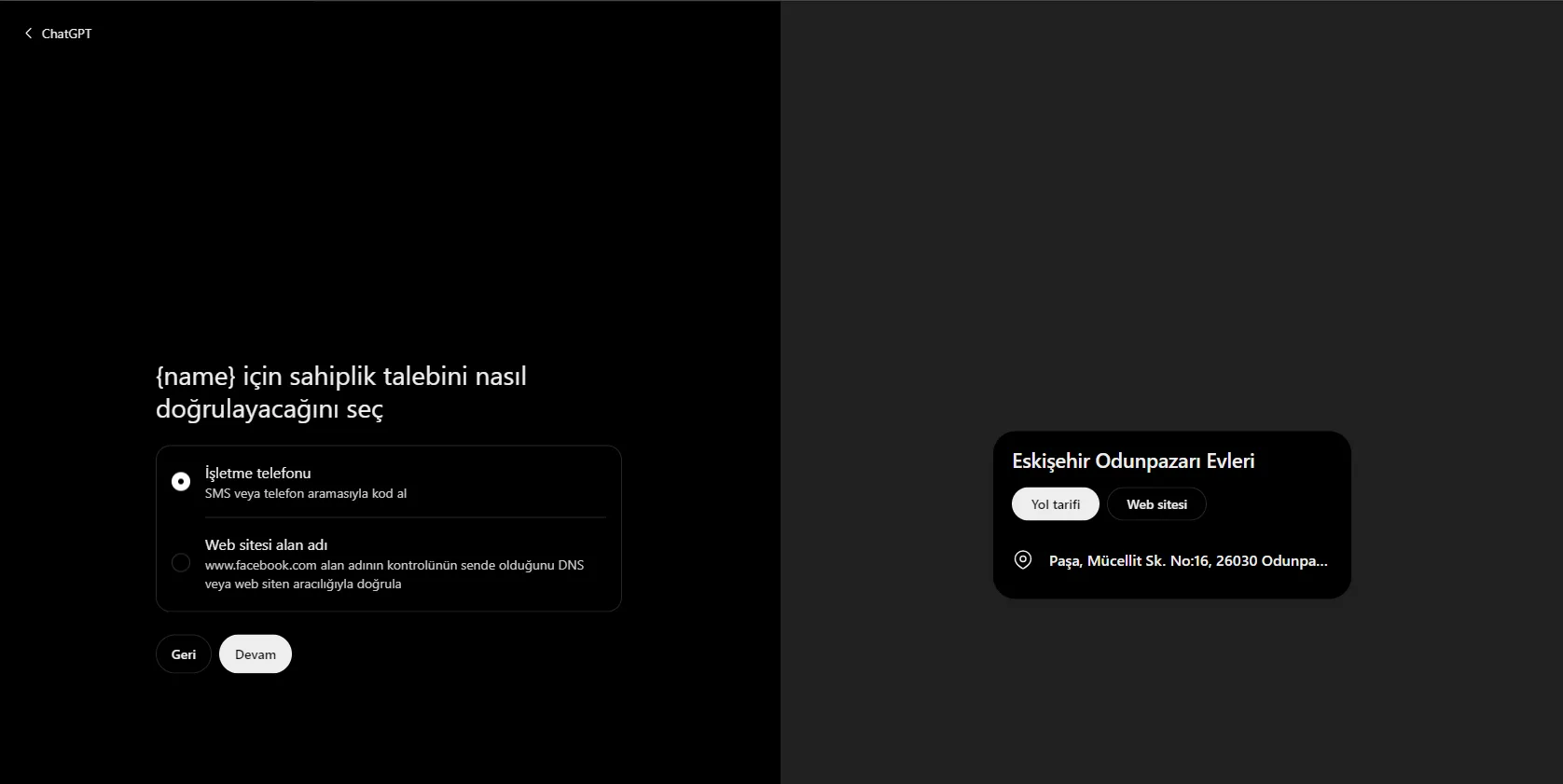
A practical tip: the Odunpazarı Evleri listing had a Facebook page saved as its website, so domain verification pointed at that address. If your own domain isn't on the listing, verify by phone and fix the website once the profile is yours.
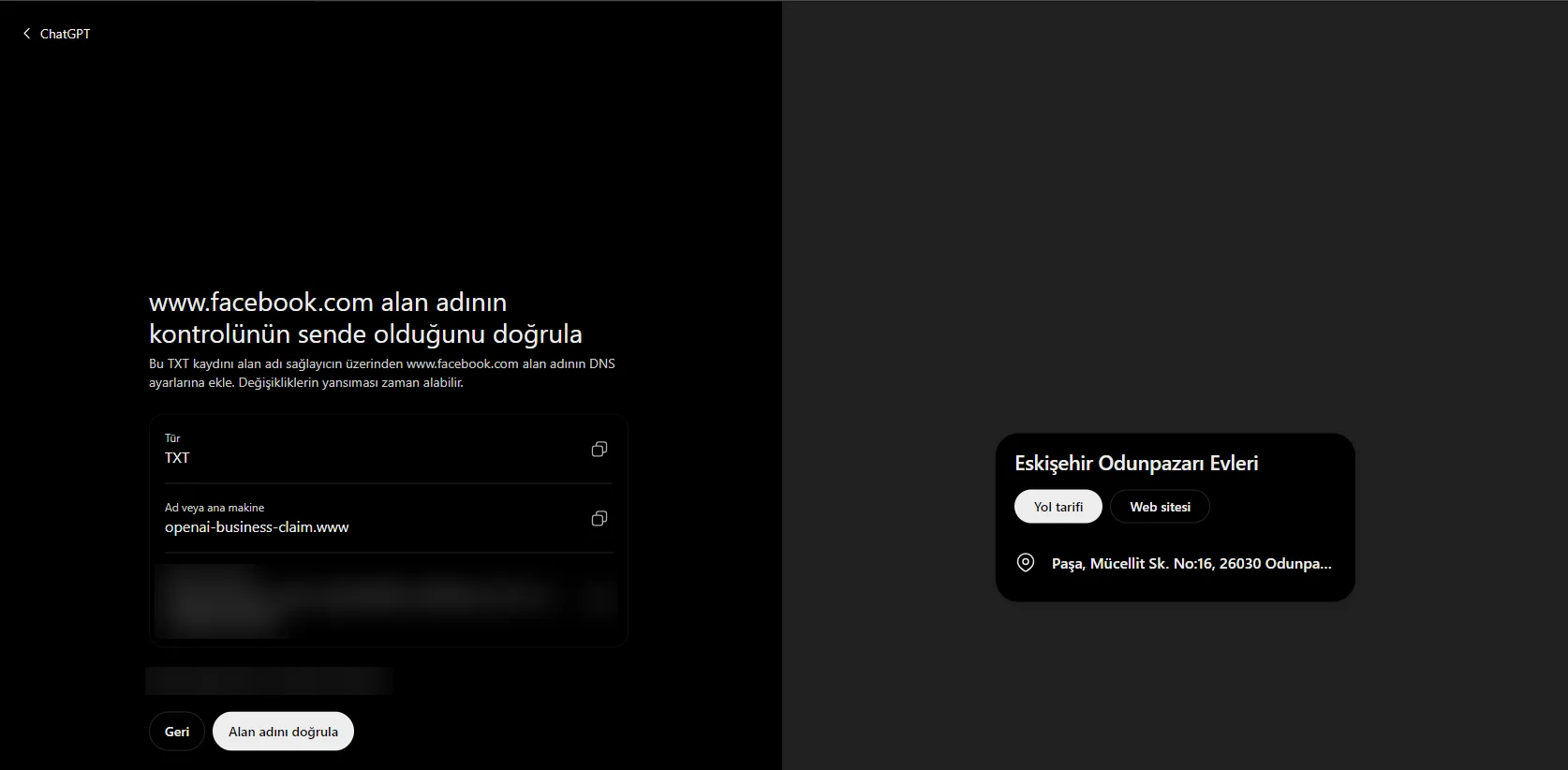
6. Add a TXT record if you chose domain verification
For domain verification, ChatGPT gives you a TXT record. The type is TXT and the name or host starts with openai-business-claim. Copy the value into your domain provider's DNS settings and click Verify domain. DNS changes can take a while to propagate.
7. Get to know the business dashboard
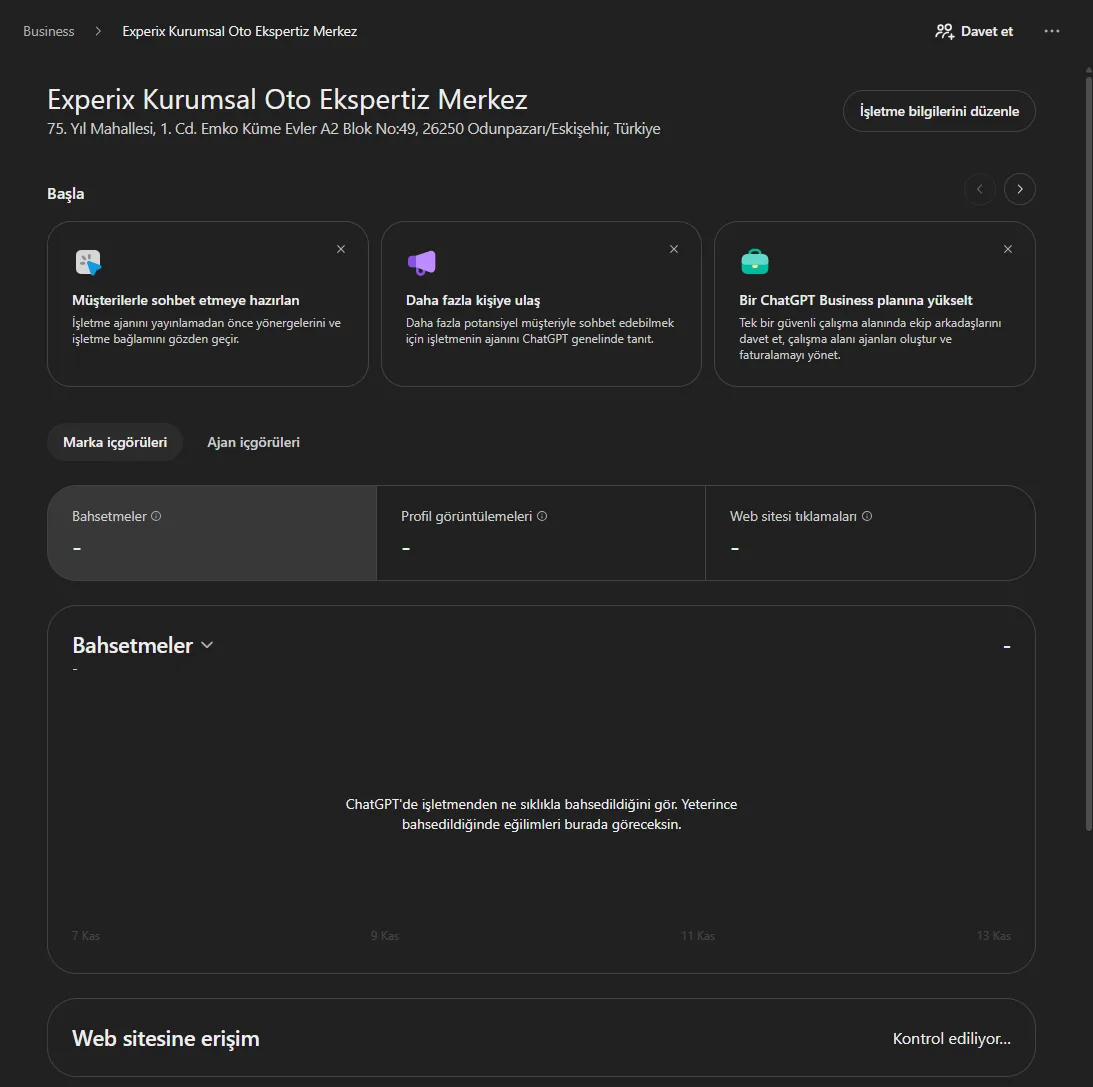
Once the claim goes through, the business appears in your Business list and gets its own dashboard. You will find Edit business info, an Invite button for teammates, and two tabs: Brand insights and Agent insights. Brand insights tracks Mentions, Profile views and Website clicks over 7 or 28 days. On a freshly claimed profile the charts stay empty until there are enough mentions.
OpenAI says businesses only see aggregate data and never individual prompts or conversations.
8. Complete identity verification with Persona
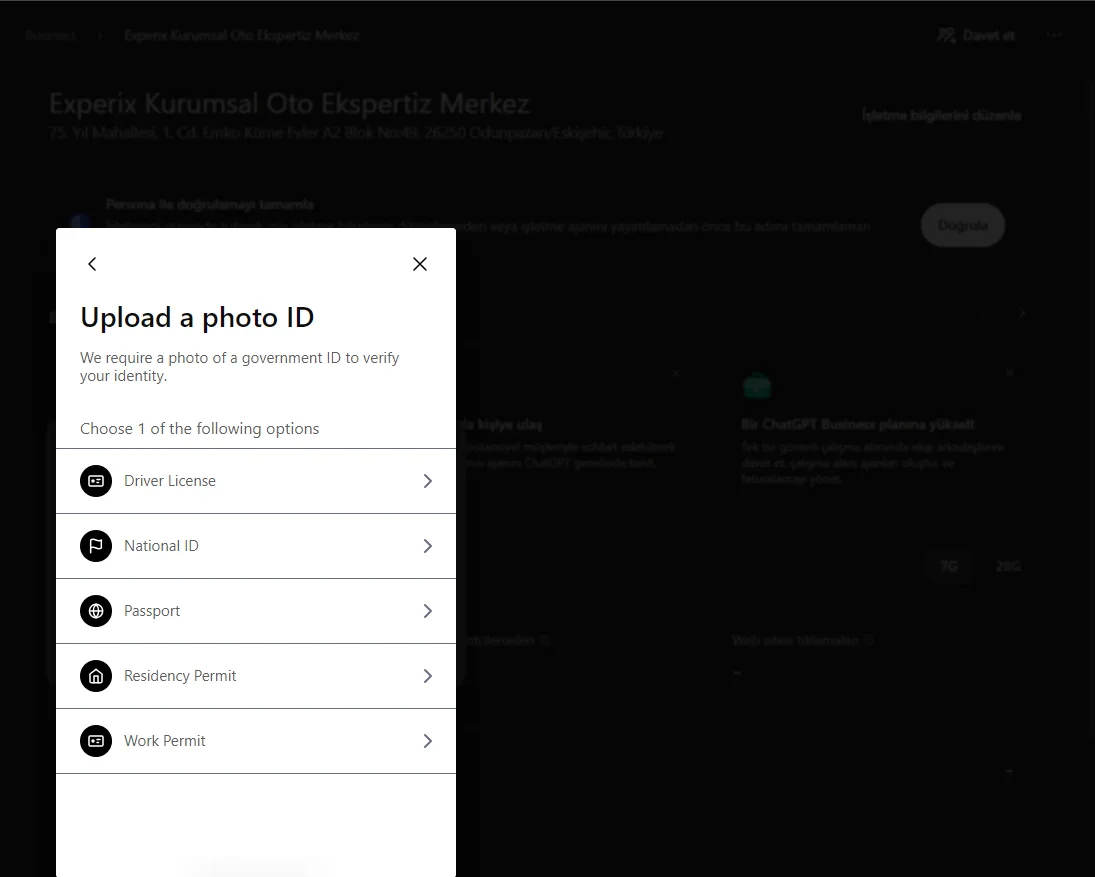
A banner at the top of the dashboard asks you to complete verification with Persona. You need to do this before you can edit business details or publish a business agent. Clicking Verify asks you to confirm you are authorised to manage the business.
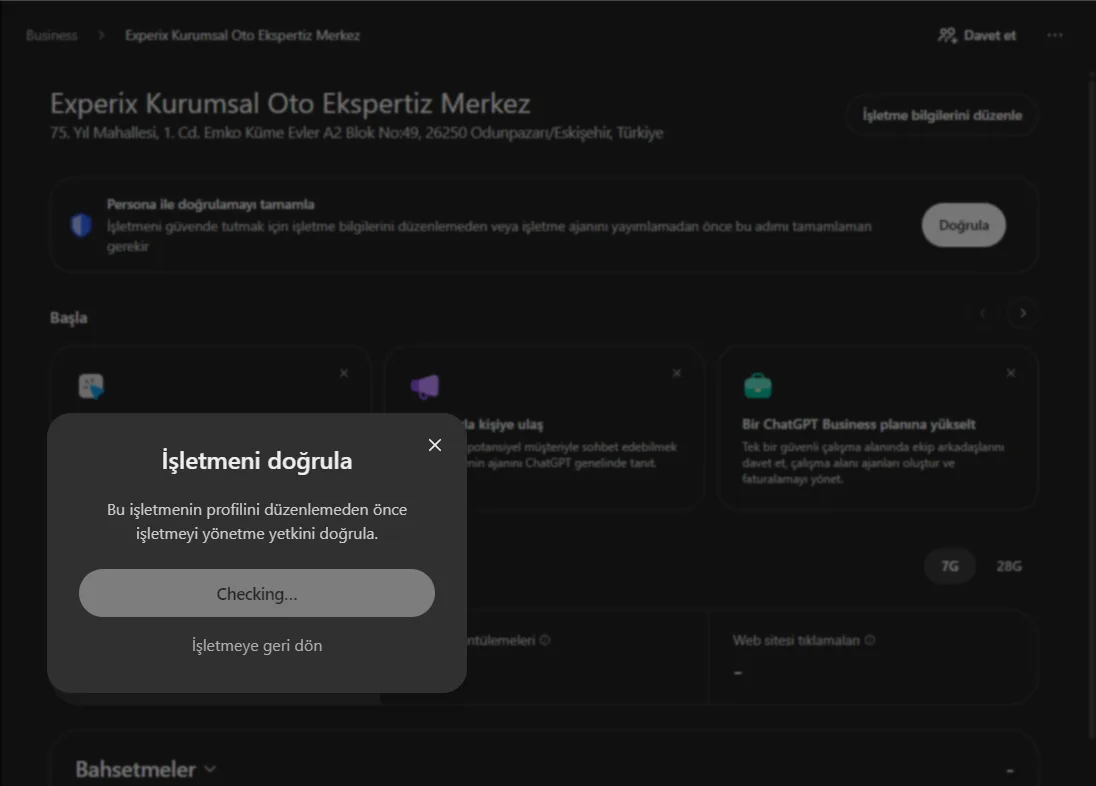
Persona then asks you to choose an ID type: driver's licence, national ID, passport, residency permit or work permit.
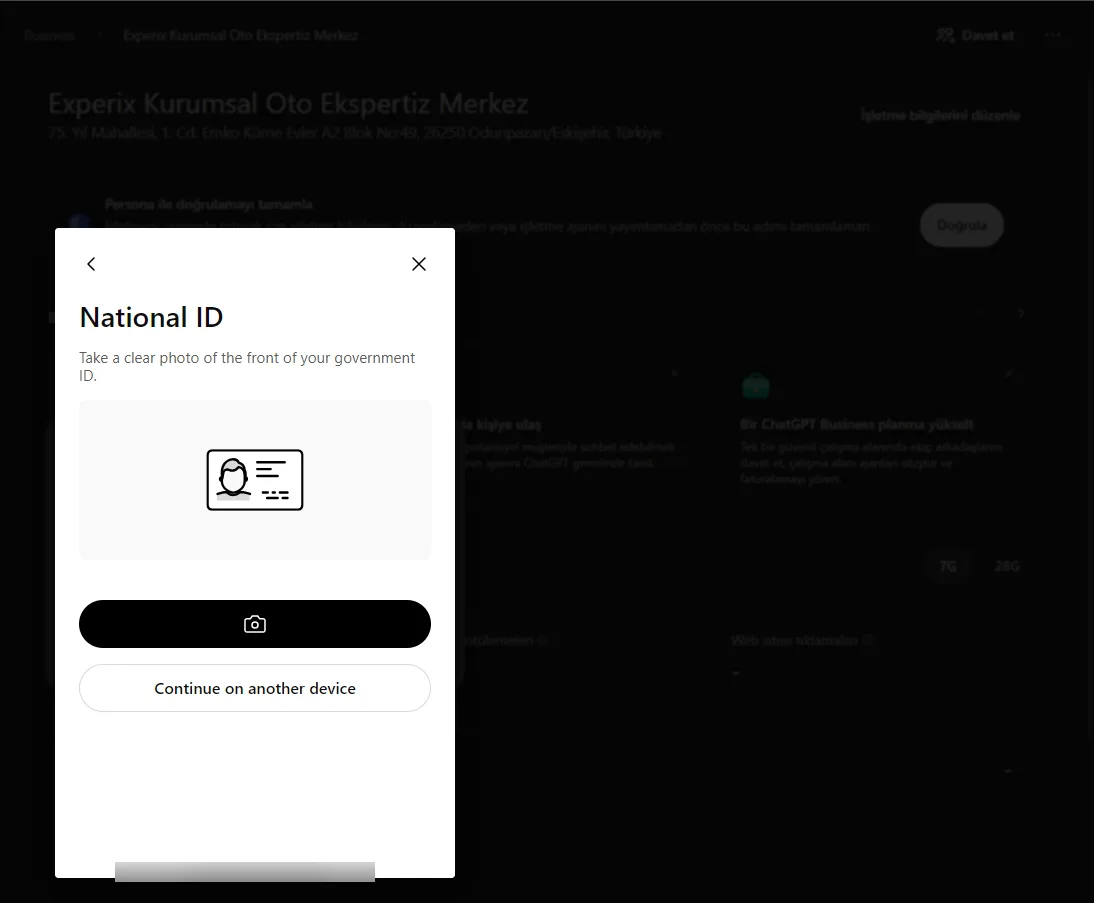
Next you take a clear photo of the front of your ID. If your computer has no camera, Continue on another device lets you finish on your phone. OpenAI says you may also be asked for business registration details and proof that you can act for the business. Once approved, your profile gets a blue verified badge.
Can businesses outside the US be added?
Yes, at least the search and claim steps work. In our test we found two local businesses in Eskişehir, Turkey, claimed one of them and opened its dashboard. Worth knowing:
- OpenAI says Business Hub is open to eligible businesses wherever ChatGPT is available, but it hasn't published a country list.
- According to OpenAI, Business Agents are limited to eligible ecommerce and online service businesses in the US. The agent cards appear in the dashboard elsewhere too, but publishing one depends on those criteria.
- The programme is in beta. Some screens are still English-only in other languages, and menus may change.
Claiming isn't enough: how to actually show up in ChatGPT
Business Hub doesn't guarantee that ChatGPT will mention you. OpenAI says so plainly: claiming a profile doesn't promise more visibility, and OpenAI may supplement the details you submit with other sources. The real work is building a solid footprint that lets AI understand who you are. We call this GEO, or Generative Engine Optimization.
- Make your website easy to read: give each service its own page, answer common questions directly and use Schema.org structured data (LocalBusiness, Organization, FAQ).
- Keep your details consistent: your name, address, phone number and website should match across Google Business Profile, Bing Places, Yandex, industry directories and social media. As the Odunpazarı Evleri example shows, a wrong website on file can even get in the way of verification.
- Earn real reviews and mentions: customer reviews and coverage in local media matter. Be wary of anyone selling "placement in ChatGPT".
- Test it yourself: start a fresh chat, ask ChatGPT "Who would you recommend for [your service] in [your city]?" and keep a record of the answers.
Signing up for ChatGPT Business and adding your team
The dashboard also shows an "Upgrade to a ChatGPT Business plan" card. That is the paid plan for inviting teammates into one secure workspace, building workspace agents and managing billing. Based on OpenAI's help centre, the setup works roughly like this:
- Sign in on the ChatGPT Business sign-up page with the account that will own the workspace.
- Choose the number of seats and the billing period. This account becomes the workspace owner.
- Go to Workspace settings > Members and use Invite member to add teammates by email or by uploading a CSV file.
- Pick each person's role and seat type when you invite them.
In ChatGPT Business, conversations stay private to each user, while admins manage usage analytics and settings. OpenAI says it doesn't use Business workspace data to train its models by default. For larger organisations that need SCIM, role-based access controls or data residency, OpenAI points to ChatGPT Enterprise. Check OpenAI's pricing page for current prices.
You don't need this subscription to claim your business profile; a regular ChatGPT account is enough.
How MCW Ajans can help
Showing up in AI answers comes from a good website, solid SEO and GEO work, consistent business details and regular content. Our web design, SEO/GEO and social media teams help brands get recognised correctly both on Google and in AI assistants like ChatGPT, and we handle claiming, verifying and updating Business profiles as part of that work.
If you'd like us to check how your business appears in ChatGPT, get in touch through our contact page or email hello@mcwajans.com.
Frequently asked questions
Does it cost anything to add my business to ChatGPT?
+
No. OpenAI doesn't charge for claiming a profile, using Business Hub or viewing insights. You don't need an ads account or a ChatGPT Business subscription; a regular ChatGPT account is enough.
Can businesses outside the US claim their ChatGPT profile?
+
Yes. In our own test we found and claimed local business listings in Eskişehir, Turkey. OpenAI hasn't published a country list, though, and Business Agents are currently limited to eligible ecommerce and online service businesses in the US.
How does business verification in ChatGPT work?
+
First you prove ownership with a code sent to the business phone by SMS or call, or with a DNS TXT record on your domain. To edit details or publish an agent, you then complete an identity check with a photo ID through Persona.
Will claiming my profile make ChatGPT mention my business more?
+
Not necessarily. OpenAI says claiming doesn't guarantee more visibility. A clear website, consistent business details across platforms and genuine reviews and mentions matter more.
Is ChatGPT Business the same as Business Hub?
+
No. Business Hub is the free section where you manage your business profile in ChatGPT. ChatGPT Business is the paid plan that lets teams use ChatGPT in a shared workspace; it used to be called ChatGPT Team.
Let's make great work together.
Let's start a project